Recently, a friend asked me if there is an easy way to print out just the paperwork for a certain stage. I also had this need this summer, but I ignored it. This is one of the many reasons I like it when others ask me questions- I’m compelled to answer and frequently, I benefit from answering their question.
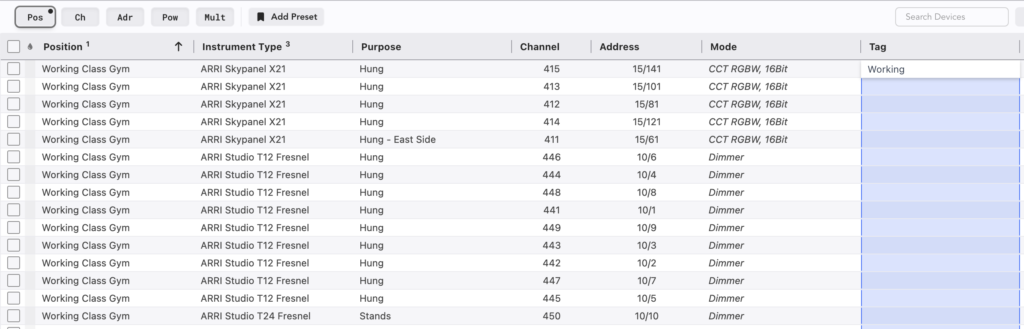
So my show this summer had several sets across two stages, plus a ton of Location work. Let’s go through how we can have the Instrument schedule only print the fixtures I want. First, we need to add a Tag. You can do this in Tag Maintenance, or you can add the Tag column to the Worksheet and enter a new Tag.
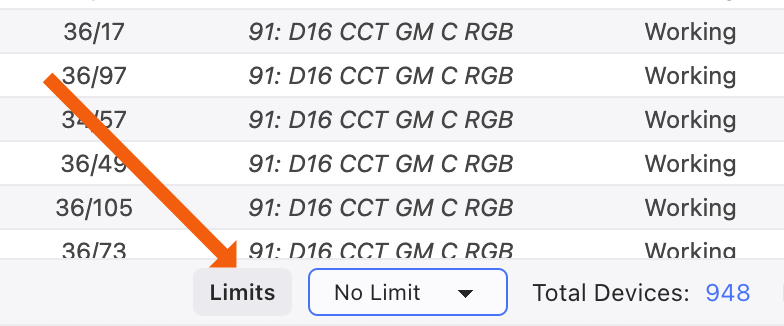
Next, at the bottom of the Worksheet, we touch the Limits icon.
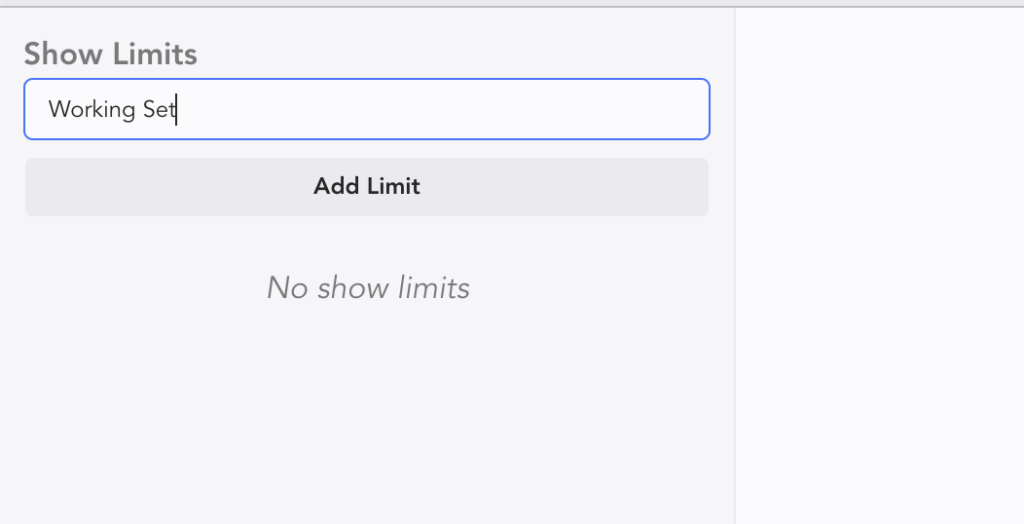
This brings us to the Limits Tab. We start by choosing a name for a new Limit and pressing Add Limit.
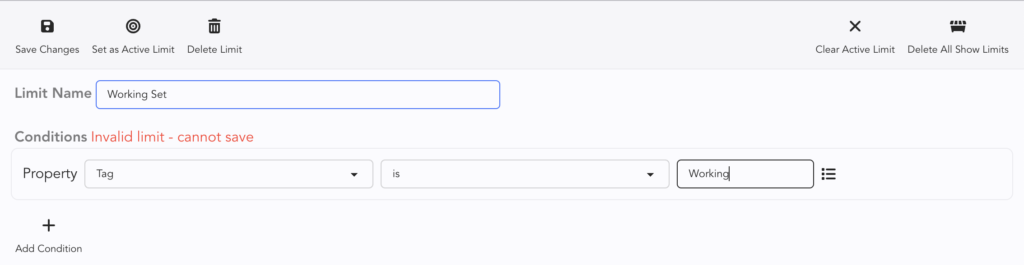
Now, you add your conditions. In my case, the Condition is Tag is Working. As always, you can set is, is not, contains, does not contain, is blank, is not blank for your condition.
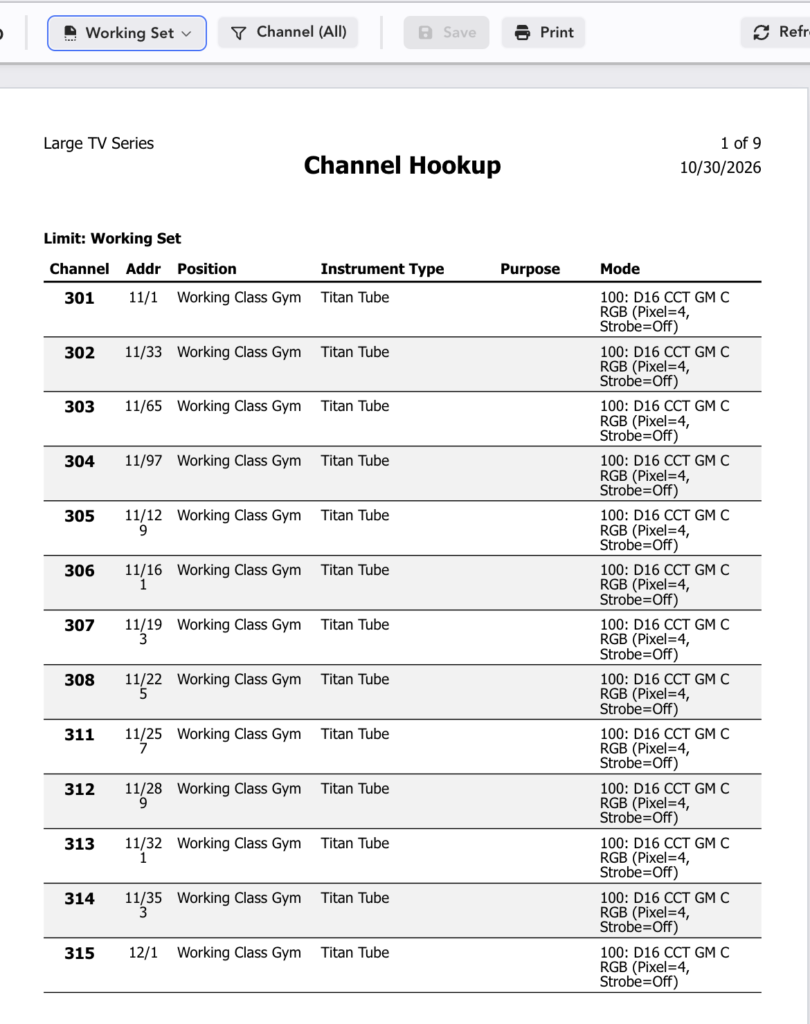
Now go to Paperwork and choose your preferred paperwork format. If you want to preview your results, at the top of the interface, touch Limit and a pulldown menu shows up.
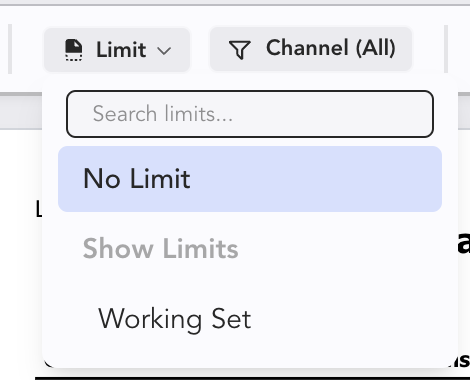
Choose your Limit and LW shows you what is about to print.
If you don’t need to preview, when you touch Print, the popup box allows you to choose your Limit.
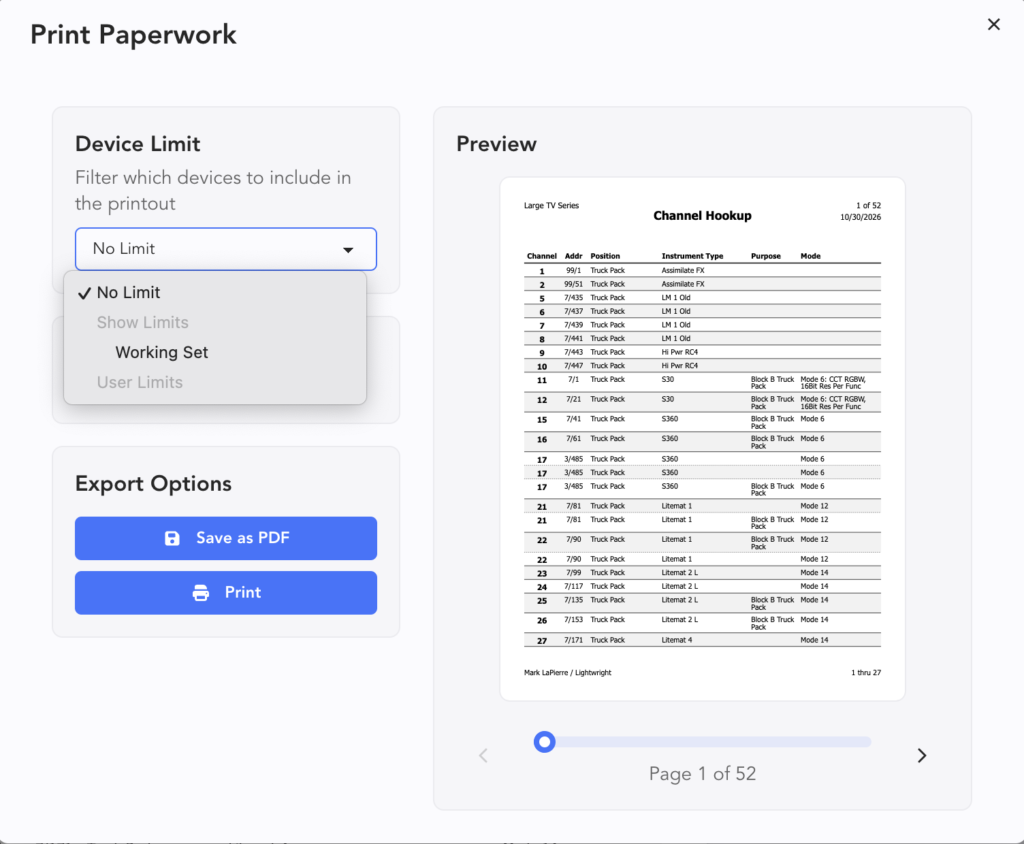
That’s all there is to it. You can obviously have a separate Tag and Limit for any additional Stages you need.
***
Mark LaPierre is a programmer in film, television and theater based out of Albuquerque. He grew up in live entertainment and has been a designer/programmer for musicals, concert dance, live music, circus and corporate. Mark is a proud member of IATSE Local 28 and 480, an ETC Eos trainer and an enthusiastic trainer of many other platforms and subjects. He offers remote console coaching in 30 minute to 4 hour times as well as a full range of training in person. If you enjoy his content, please consider commenting on his posts on the website to appease the Algorithm.