I avoid using Vectorworks for many reasons, but the negative of this is when I HAVE to use it, I’ve forgotten things or they are slow to return. Combine that with the fact that Vectorworks has literally the most embarrassing symbol for the Titan Tubes in the industry, and that leads us to this post. Let’s make a workable Titan tube symbol.
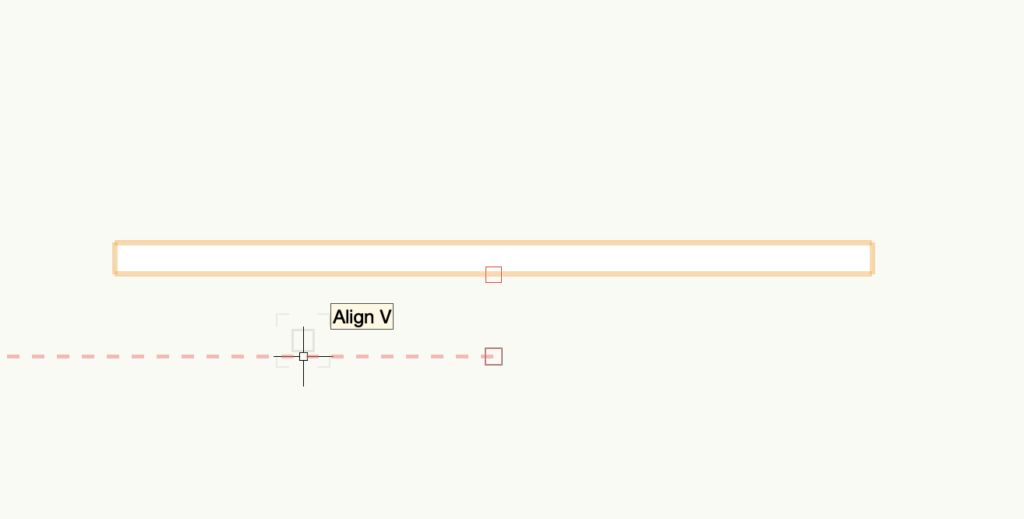
Step one is to select the Rectangle tool and create a rectangle that is 40.7” by 1.7”.
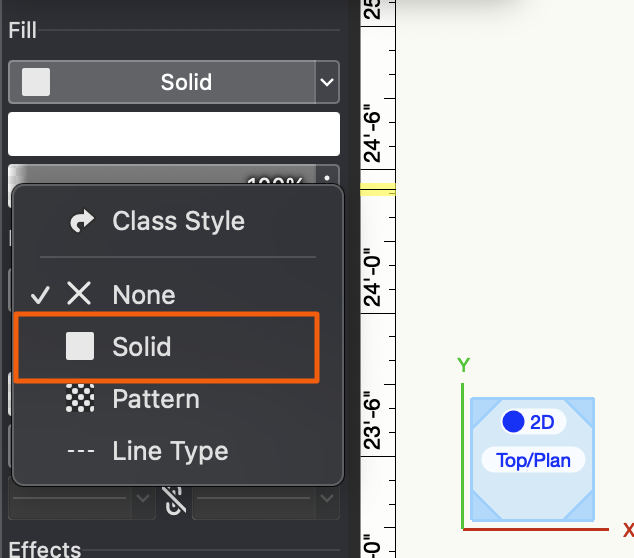
Make sure there is an outline to the tube for visibility. Go to Attributes and turn Pen on if it’s not by selecting Solid. Then choose a color. I’m choosing black.
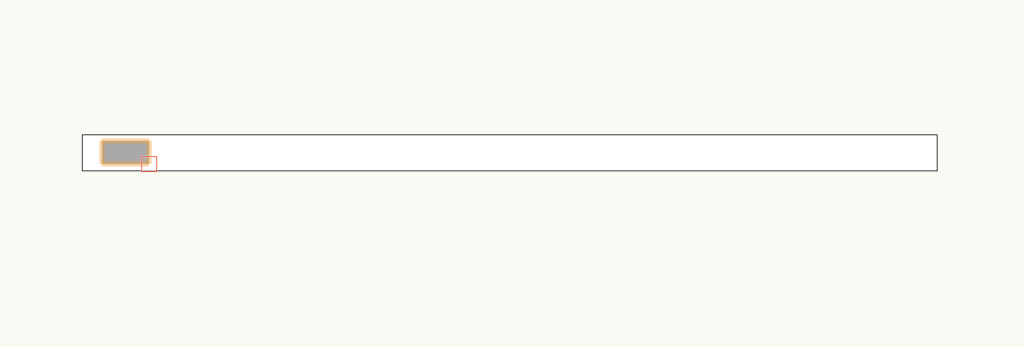
Since I work a lot with Pixels and I care A TON about the direction of the pixels, I add another little rectangle that represents the display. It’s a grey color.
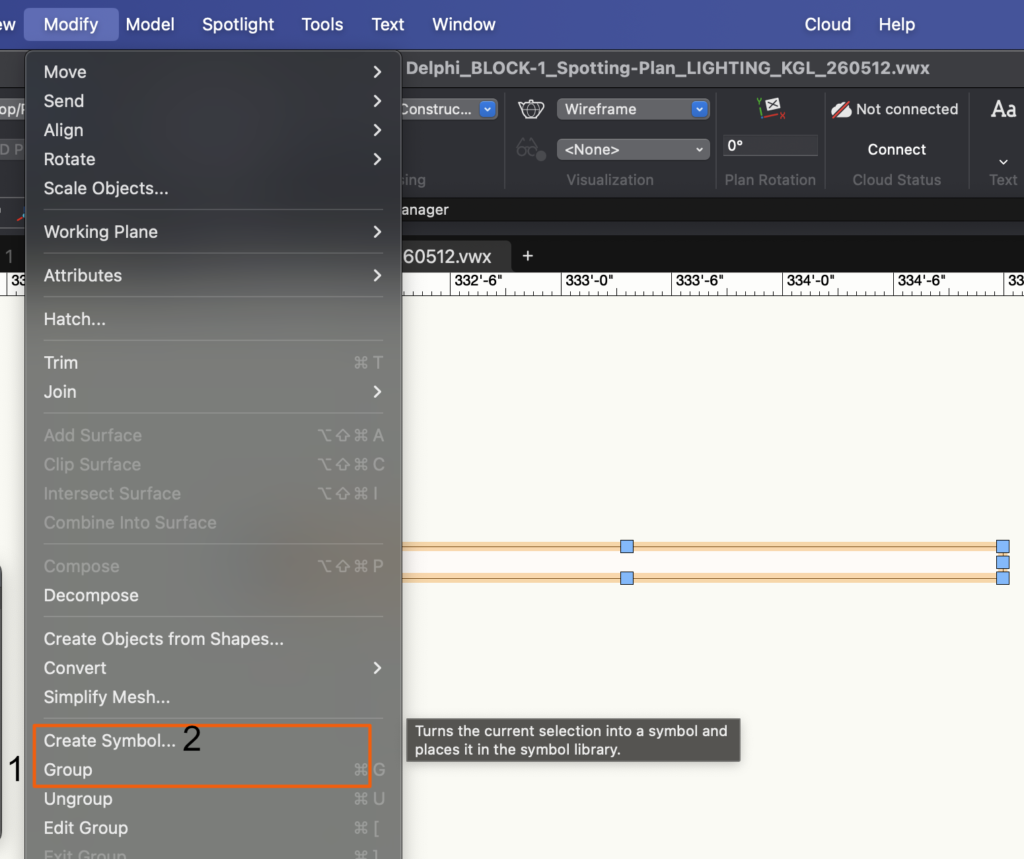
Next, use the selection tool to select both rectangles and choose Modify> Group, then choose Modify>Create a Symbol.
When you’ve done both actions, a popup will open where you need to name the Symbol.
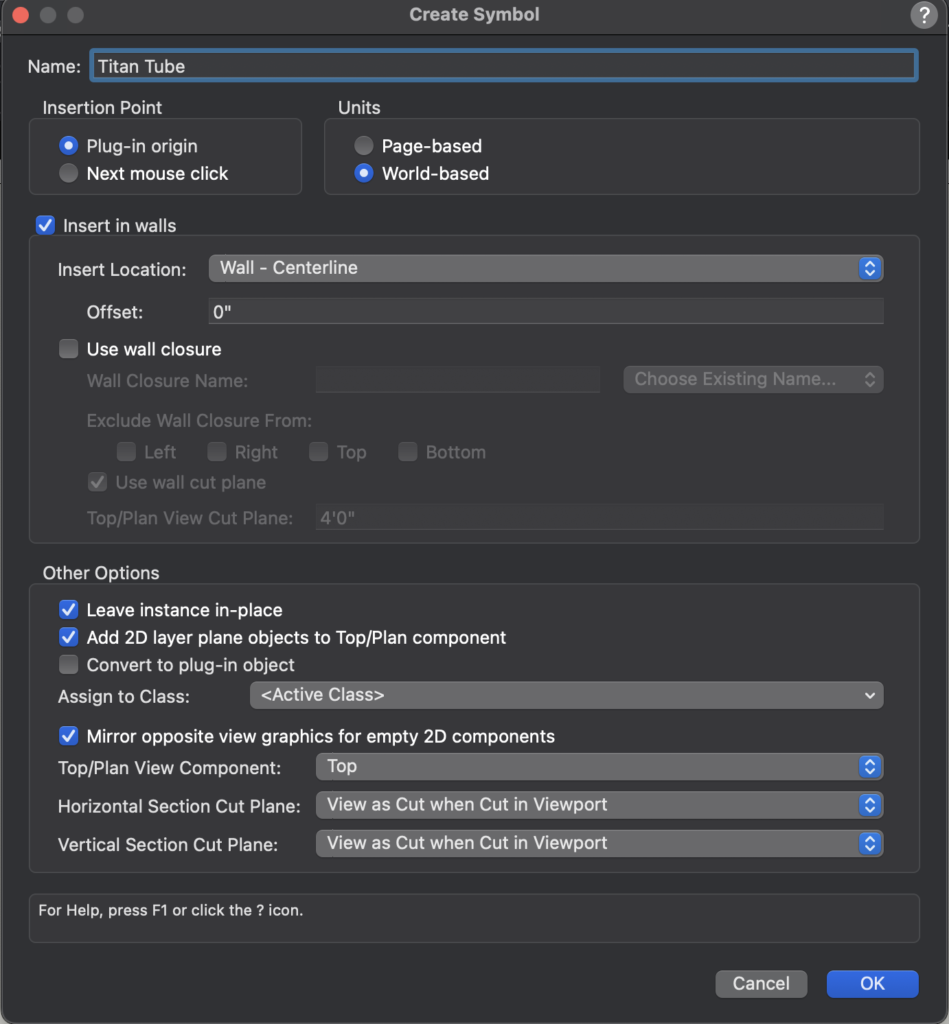
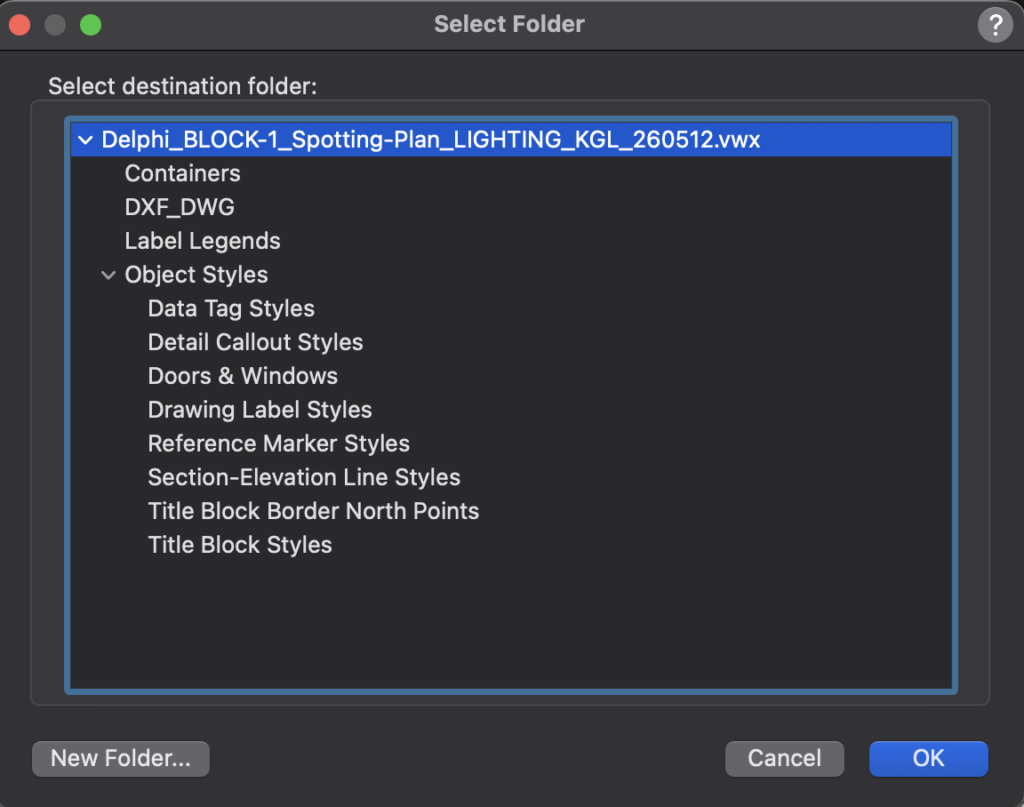
Choose the destination folder. I leave mine in the root file directory because I’ve practiced this mistake over decades. Feel free to do better than me and make a folder for your symbols.
Last step is to go to Spotlight>Lighting>Convert to Lighting Instrument.
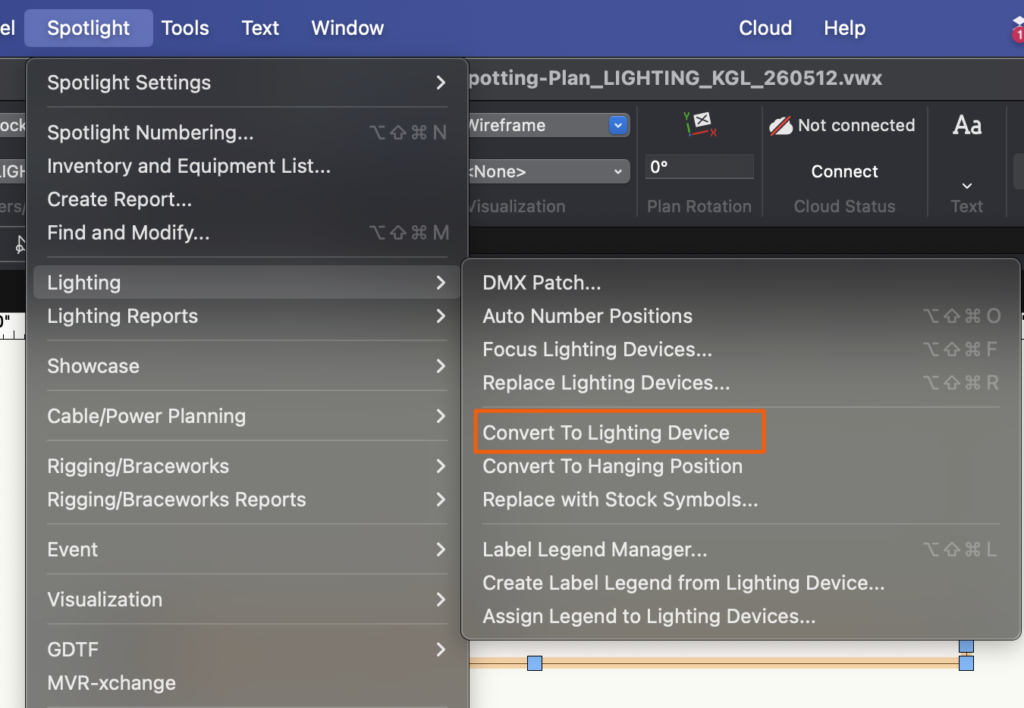
Now- it’s confusing, because the light you are selected on seems complete. However, there’s still more to do to make the symbol in the Resource Library work.
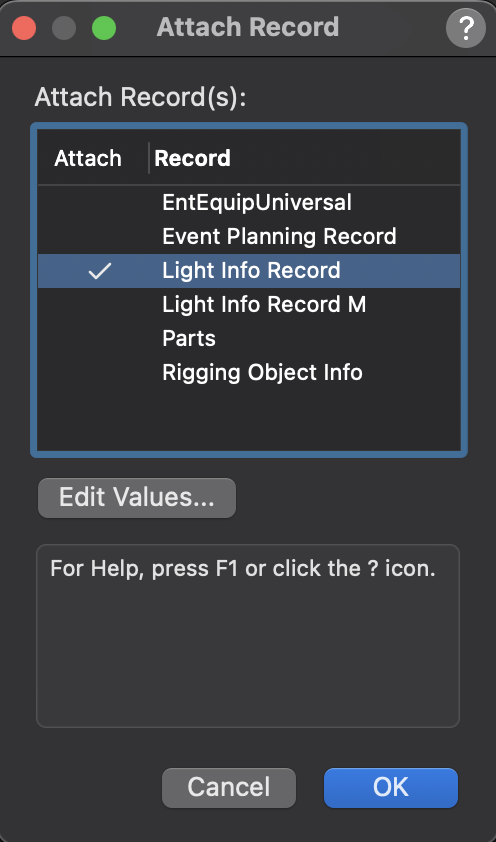
Go to your Resource Manager and find your new symbol. Right click on it and choose Attach Record.
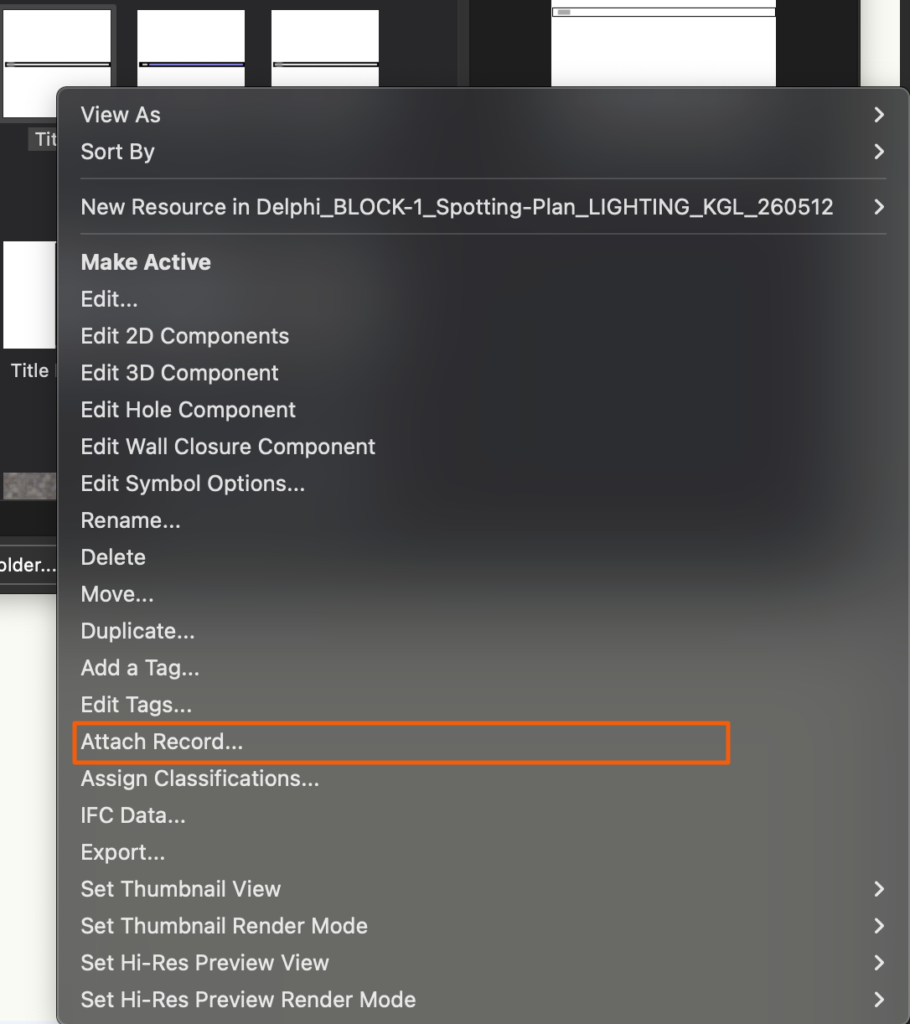
Select Light info Record and make sure there is a checkmark next to it.
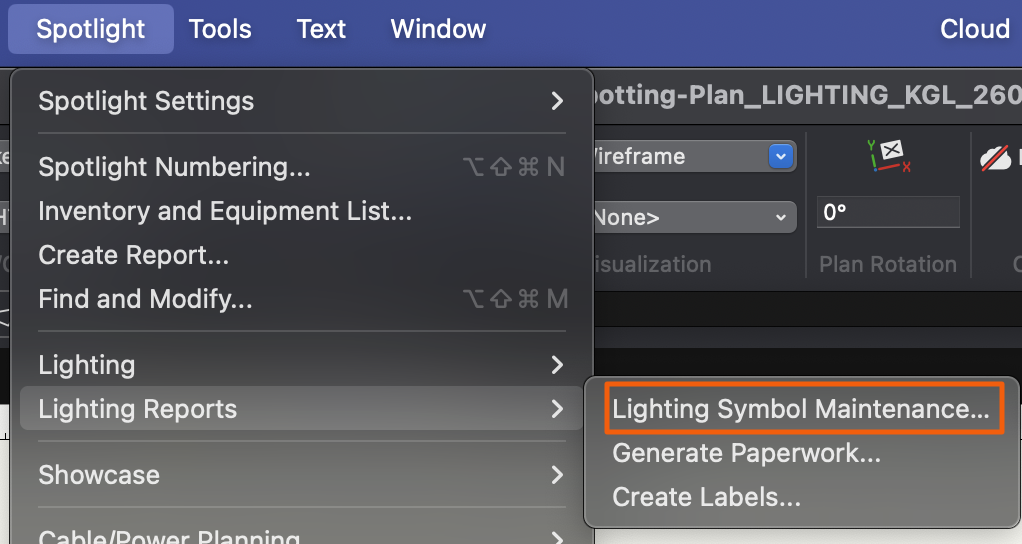
Last thing we need to do is make sure our light has the right Fixture Type name. The Symbol name is separate from the Type name. Go to Spotlight>Lighting Reports>Lighting Symbol Maintenance.
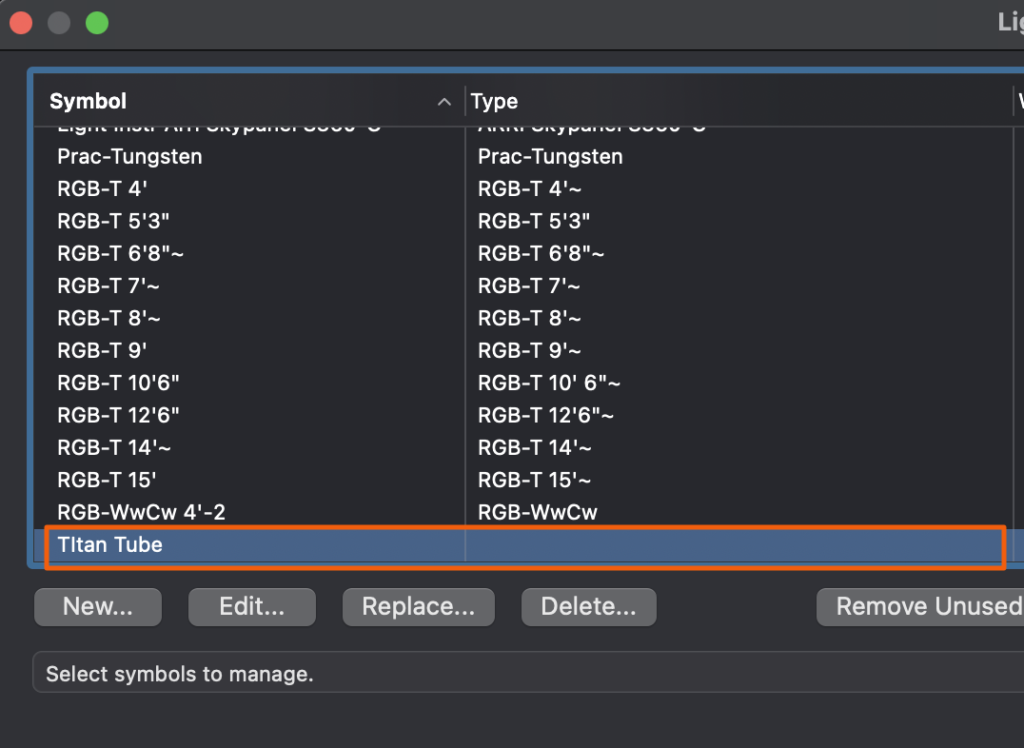
A table popups that shows all Fixtures in your file. Look for one without a Type name.
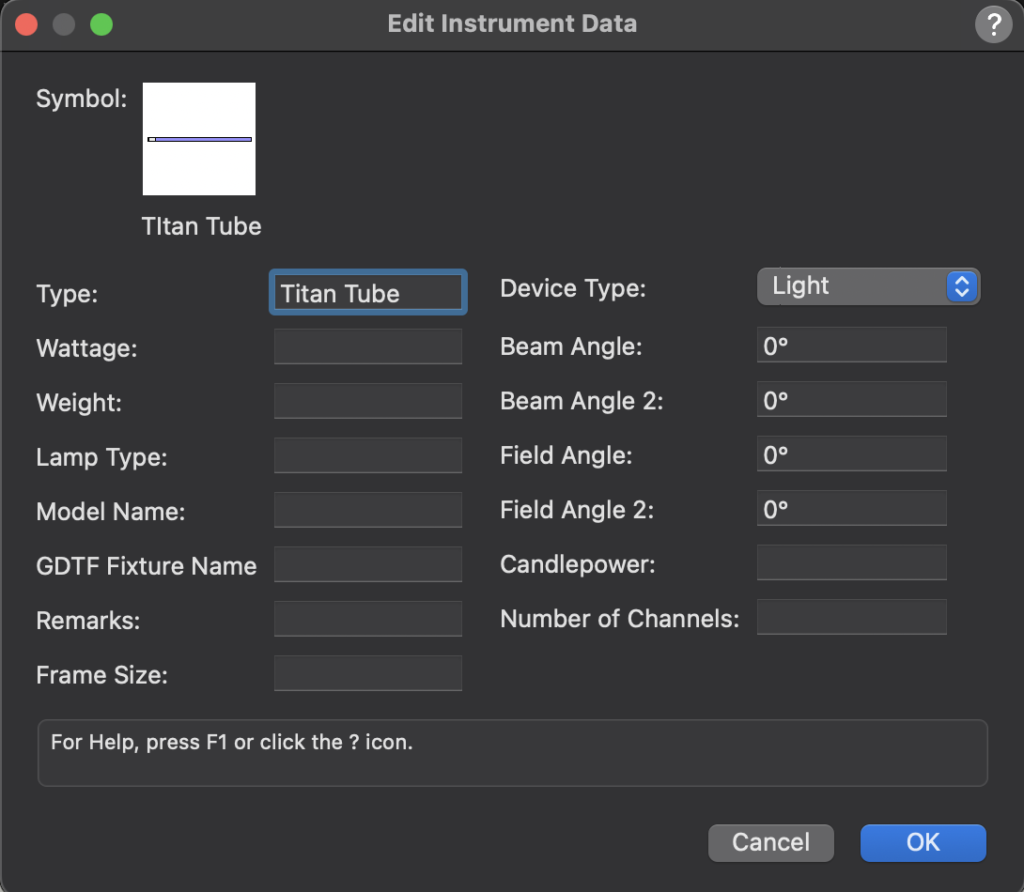
Double click the empty field under Type and a popup opens. Fill in the Type name.
That’s all there is to it. The symbol is ready for use and in your Resource Manager. Now, you should know that this does not provide a 3D model of the light. I seldom work that way in VW since I much prefer to do 3D work in Capture. But there are online tutorials for those of you who need such a thing.
Obviously, these steps can be taken (with different shapes) to create any symbol you might need. Happy Drafting!
***
Mark LaPierre is a programmer in film, television and theater based out of Albuquerque. He grew up in live entertainment and has been a designer/programmer for musicals, concert dance, live music, circus and corporate. Mark is a proud member of IATSE Local 28 and 480, an ETC Eos trainer and an enthusiastic trainer of many other platforms and subjects. He offers remote console coaching in 30 minute to 4 hour times as well as a full range of training in person. If you enjoy his content, please consider commenting on his posts on the website to appease the Algorithm.