My preferred console usually is one with a small footprint. In Eos it’s the IonXE, in MA it’s the Command wing, with Chamsys it’s the Stadium Connect, etc. I’ve spent a lot of time traveling from show to show and more recently from (film) location to location, and having a compact footprint is irresistible to me. But there are things that are not present on these smaller form factors that are hard to live without- mostly freely assignable keys for macros. So how do I work around that? X-keys.
For the uninitiated, X Keys are a product line with many form factors that allow you to program a series of keystrokes and assign them to one button. This allows you to use your console’s keyboard shortcuts to trigger things you want. If your console doesn’t support the function you want, they always seem to support putting what you want into a macro, then triggering the macros from X Keys.
All X Keys products are made to last and I’ve never had any significant issues with one as I’ve travelled around the world. One irritant I should mention is the keycaps (which come off so you can place lables under them) can get knocked loose during travel if you don’t protect them.
The way I set up any X Key device is always the same. I program each button to trigger a series of macros in numerical order. 80 keys? Macros 801 through 880. 16 keys? Macros 901 through 916. 24 keys? Macros 701 through 724. This way, when I’ve left empty space to add more macros as I need them, I don’t have to edit the device to make it work- it’s always been ready to trigger the whole range of macros. I just create the macro in the console, stick a piece of tape on the button it’s pre-assigned to, and get on with my production.
My favorite three X Keys are great for different reasons:
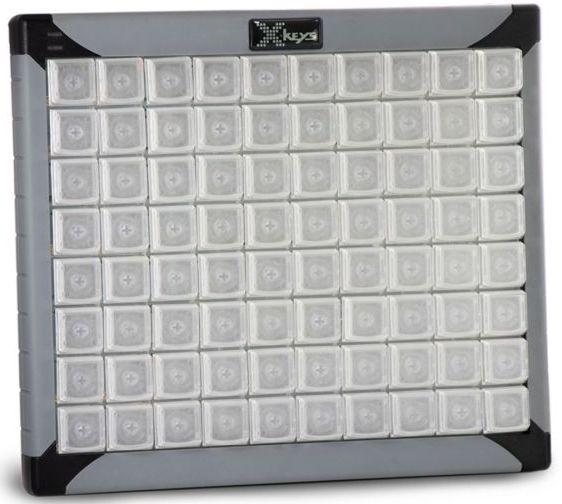
The XK 80 is the one I’ve used the longest. I have every macro I need to build, update, and revise a show of any size. There is plenty of room to have all my most-used macros available with plenty room to add new macros as special needs of the production (or day of programming) pop up. Always make sure you have some room to add!

The XK 16 is the perfect form factor for the truly tight programming spaces. I’ve often taped this to the console right above the encoders. I adore this form factor, though obviously 16 keys is rather limited for a macro-hungry programmer such as myself. TBH, I’ve always used this with MA products, where it basically gives me buttons I wish were already on the console.
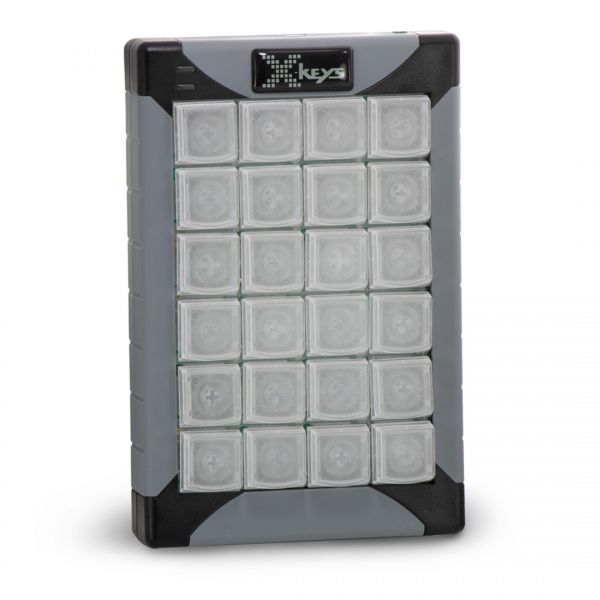
The XK 24 is my most recent addition. I’ve noticed I use far fewer macros when programming film, and since every day I’m on a smallish cart, having the smallest form factor that can fill my needs is ideal.
In the spirit of trying to be as helpful as possible, you should know that there are other manufacturers that make similar products sometimes at lower price points. I’ve tried several of them and have not found the lower price worth the awkward setup and limited support. But you can easily find other options on Amazon or other online store you enjoy shopping with if budget is an obstacle.
Though I could do a show without these products, I would never actually want to. Macros are an ideal way to speed up your programming, and this is a profession about speed and precision. What programming tools do you use to speed up your work? Hit me in the comments. And if you are curious, these are macros I use on the full 80 key setup.
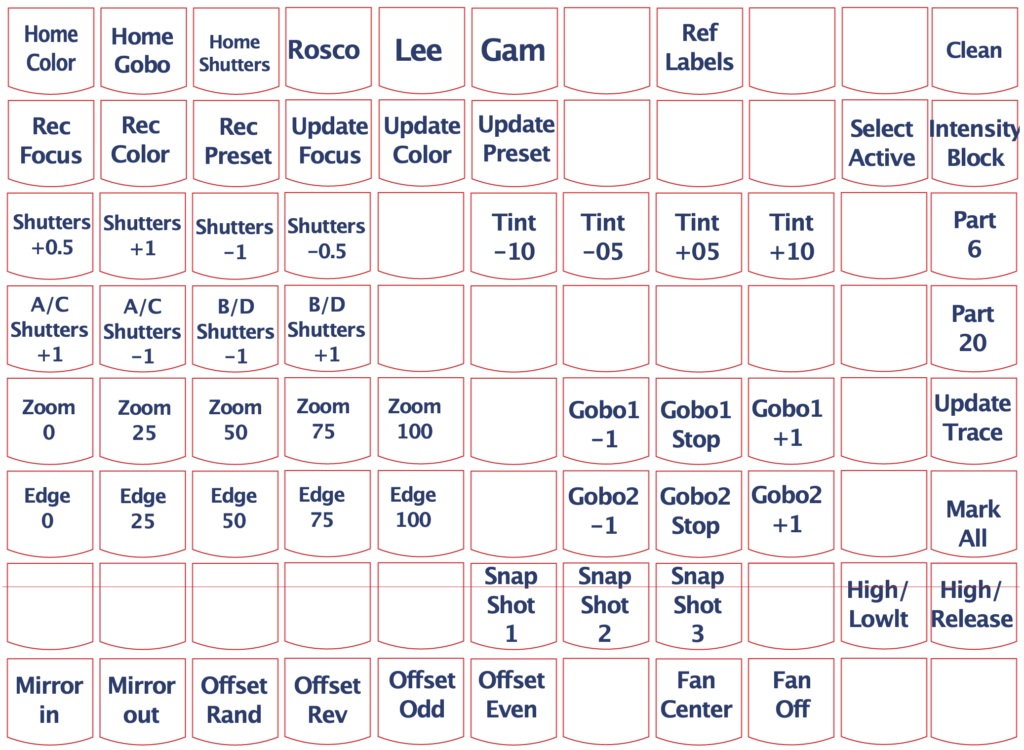
(Sorry about the weird red line through the second to last row. I couldn’t figure out how to get rid of it!)
4 comments